Export Files from Neptune® 360™
An export file from Neptune 360 is a structured data file generated by the system that contains the latest meter readings and related order statuses, for routes previously imported for billing. The primary purpose of the export file is to transfer completed meter read data back to the billing system so that customer bills can be calculated accurately.
On the Export File screen, you can generate the billing file for selected routes. This screen displays all unexported routes along with key statistics for each, giving you a clear overview before exporting.
What You Can See and Do in This Window
Click a link to display the related information or step-by-step procedure.

Export a Route
- On the Neptune® 360™ navigation bar, click Export Files under Billing Services.
- On the Export Files page, select one or more routes to export, and then click Export.
Press CTRL and click each row for a route to select it. If you want to select all of the routes, click Select All.
The Export Process screen is displayed.
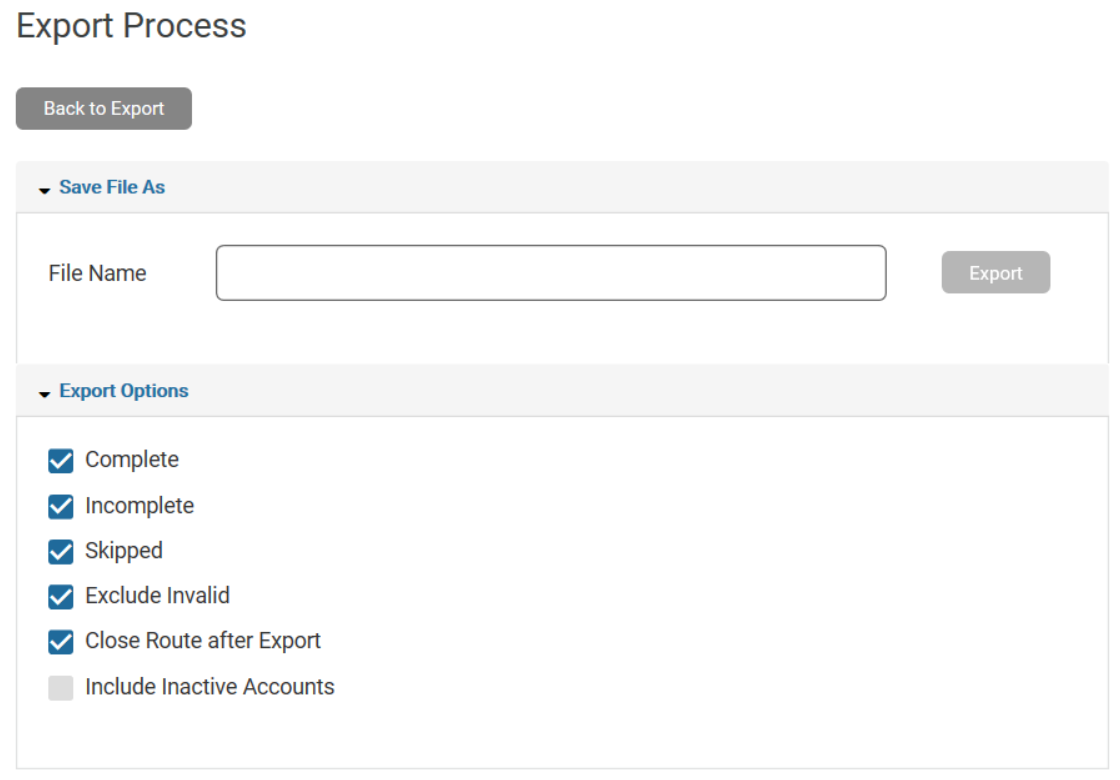
- Select the Export Options at the bottom of the screen. Each option applies to all meters within the routes you select. You can select and deselect these options.
- Complete – include all meters that have valid reads within the past 10 days.
- Incomplete – include all previously incomplete meter exports.
- Skipped – include all meters that have been marked as skipped.
- Exclude Invalid – do not include in the export any meters that have only invalid reads within the past 10 days.
- Close Route after Export – closes selected routes after exporting. If you chose this option, the Active Route Status KPI in the dashboard resets to zero.
- Include Inactive Accounts – include inactive accounts in the export file.
- In the File Name field, type a name for the export file, and then click Export again.
- In the Windows Save As screen, select the location where you want to save the file, and then click Save to save the file on your local computer.
Customize the Grid Display
You can display routes of a specific status or display all routes in the grid by selecting any of these View options:
- All – displays all routes, both Unexported and those previously Exported. Note that selected routes can span multiple pages, so if you select a route on one page then select a route on another page, all routes between the two selections are included in the export. See Navigate in Grids and Customize the Grid View for more information about list display and selection options.
- Unexported – displays only Unexported routes.
- Exported – displays only routes that were previously exported.
You can export one or more routes or all routes in the screen list. To select multiple routes:
- Press CTRL and click each row for a route to select it.
- Click Select All and Deselect All as needed to select and deselect all routes in the list.
Export Files Field Descriptions
The following table defines the column data on the Export Files screen.
| Column | Description |
|---|---|
| Cycle / Route | Name of the meter reading cycle and route. |
| Import Date | Date the route was imported. |
| Total Complete | Number of meters with a valid reading within the past 10 days in this route. |
| Total Exported | Number of meters that were previously exported in this route. |
| Total Incomplete | Number of meters without a valid reading within the past 10 days and not skipped. |
| Total Meters | Number of meters imported in this route. |
| Total Skipped | Number of meters marked as skipped in this route. |
